
Mac dictation: turn it on, find your shortcut, keep your train of thought
You’re halfway through an email, ready to say the next paragraph, but your Mac puts nothing on the page. Open System Settings → Keyboard → Dictation, turn it on, put your cursor in a note and press the shortcut shown there. If dictation stopped while you were thinking, 30 seconds of silence may explain it: start it again and carry on.


Contents
How do you turn on dictation on a Mac?
Start with a sentence in Notes. It gives you a simple place to check whether your Mac is hearing you before you return to the email.
- Open System Settings → Keyboard → Dictation and turn Dictation on.
- Select the language you’ll speak.
- Open a new note in Notes and click where you want the words to appear.
- Choose Edit → Start Dictation. Wait for the ready signal, then say a sentence.
- Press Escape to finish.
Try: “I’ll send the draft this afternoon.” Watch for the words in your note.
Which Mac dictation shortcut should you press?
If your sentence appears in Notes when you start dictation from the menu, speech recognition is working. If your key still does nothing, check how your Mac expects you to start it.
Open System Settings → Keyboard → Dictation and read Shortcut. Use the microphone key if your keyboard has one, or the key combination shown in that setting.
Double-pressing Fn is one option. F5 isn’t a universal dictation key.
Choose a shortcut, return to the same note and try it. Once the words appear, use that shortcut to start dictation in your email.
Why does dictation start without typing anything?
Start with the card that matches what happened on your Mac. If Voice Control is on, check its card too. Leave the last card until you’ve tried the checks that apply to you and tested Notes again.
Dictation starts, but no words appear
Check the language and Microphone source under System Settings → Keyboard → Dictation. Then open Sound → Input, select that same microphone and speak.
- The input level stays still: check the microphone’s connection or select another input, then try again.
- The input level moves: check that Dictation’s language matches your speech. Read the note under Dictation about whether an internet connection is required, then try again in Notes.
Words appear in Notes, but not in my app
Click inside a normal, editable text field in the app and try dictating there. If words still don’t appear, close and reopen the app, then try again.
Voice Control is turned on
Voice Control replaces Dictation while it’s on. For ordinary dictation, open System Settings → Accessibility → Voice Control, turn it off and repeat the sentence in Notes. If you want to control your Mac by voice, continue using Voice Control.
Notes still gets no words after the checks above
Save your documents, restart your Mac and try the sentence in Notes again. If it still fails, contact Apple with the results: whether the input level moved, whether the menu started dictation and whether any words appeared in Notes.
Why does Mac dictation stop when you pause?
The words were appearing. Then you stopped to think about the next sentence, and dictation stopped too.
Apple says Dictation stops after 30 seconds of silence. There’s no general limit on the length of the text you dictate. After a thinking pause, use your shortcut again and keep going.
Your paragraph is taking shape. But what happens when you change your mind halfway through a sentence?
How can you turn rough speech into a finished message?
Once the words are reaching your email, you can focus on what they say. You suggest a time, change it aloud and want the message to contain the time you settled on.
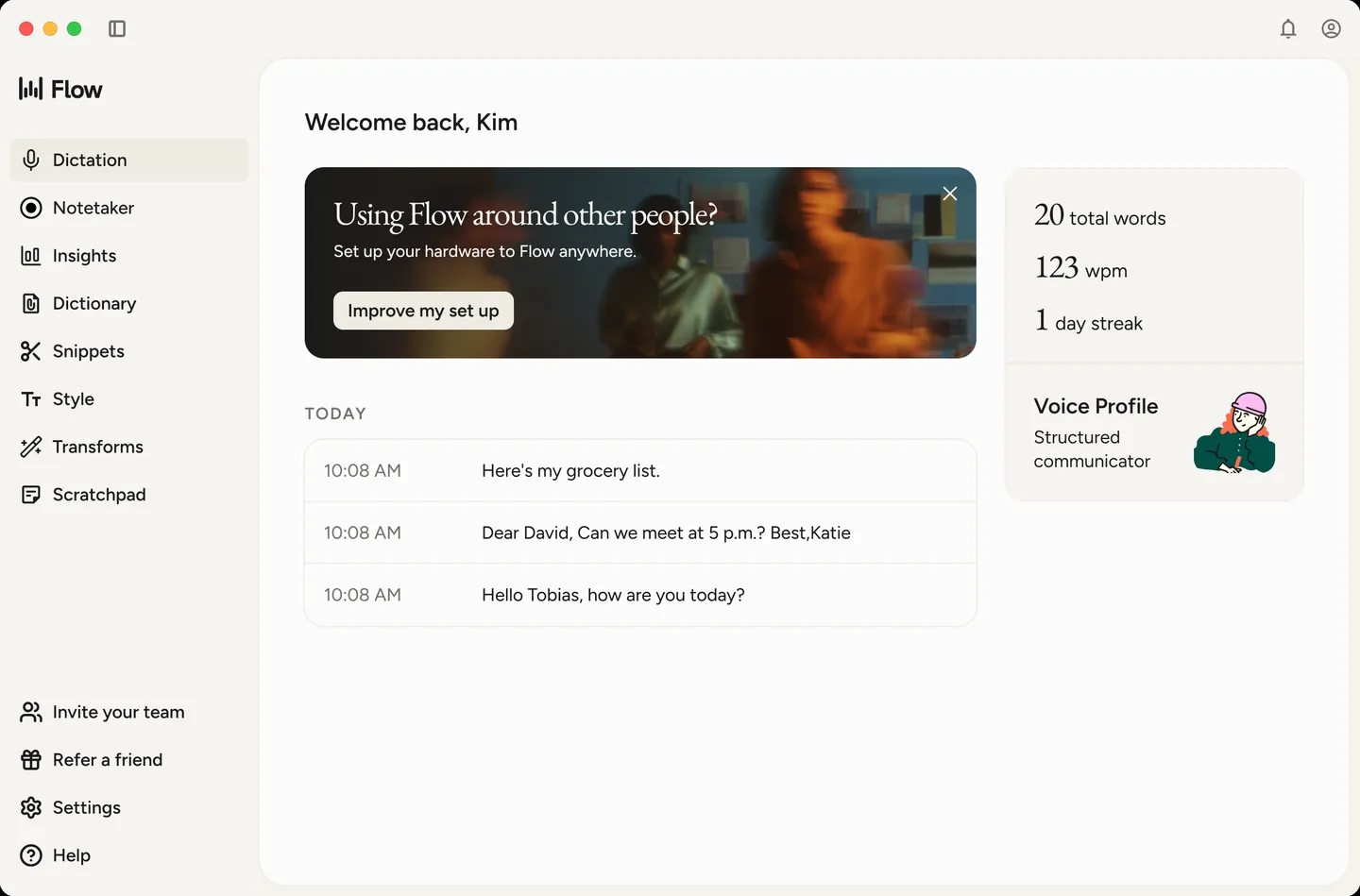
Wispr Flow can turn that spoken correction into the final sentence:
Let's do coffee at 2 actually 3
Let's do coffee at 3.
The invitation keeps 3, the time you meant. Wispr Flow also handles formatting, removes filler words, creates lists and lets you add words to a dictionary.
Want to compare options before choosing? Find the right dictation tool for your Mac
To use it in your next email:
- Install Wispr Flow and allow Microphone and Accessibility access.
- Put your cursor in the email.
- On an Apple keyboard, hold Fn while you speak. Release it to insert the text.
Want to speak without holding a key? Press Fn + Space to start, then press it again to finish. Without an Apple Fn key, use Ctrl + Option to hold and speak, or Ctrl + Option + Space for hands-free dictation.
You’ll need macOS 12 or later and an internet connection. Intel and Apple Silicon Macs are supported. Each recording can last up to 20 minutes.
Try your next message with a correction spoken out loud. Start the free trial and see how your final choice reads in the email.

Comments
No comments yet. Ask a question or share what worked for you.