
Voice to text not working on iPhone? Find the failed step
You tap the microphone to reply, but no words appear. Yesterday it worked. Start with one short sentence to find out where it gets stuck.


The keyboard you use matters. In Notes, use the globe key to choose Apple's keyboard. Then open Settings → General → Keyboard and turn on Enable Dictation.
Back in Notes, tap the microphone and say: “I'll be there at seven.”
What happened?
Want another way to finish your reply? See the iPhone option.
Where did the keyboard microphone go?
If the mic is still missing or greyed out on Apple's keyboard, check whether dictation is restricted. The keyboard choice and permission to dictate are separate checks.
Apple keyboard selected
Enable Dictation on
Dictation allowed in Screen Time
Open Settings → Screen Time → Content & Privacy Restrictions and check the restrictions for dictation. The section may be labelled Siri or Intelligence & Siri, depending on your iOS version.
Now try “I'll be there at seven” in Notes, then in the app where you wanted to send your reply.
Words appear in Notes, but not in that app? Reopen the affected app and check for an app update. If it still won't accept dictation, contact that app's support and tell them the same sentence works in Notes.
Still no words in Notes? Next, check whether your iPhone can record your voice.
Does your iPhone record your voice?
A recording checks the sound before speech has to become text. Open Voice Memos, record a short sentence, then play it back.
Can you hear yourself clearly? If the recording is clear but Notes still shows no words, restart your iPhone, check for an iOS update, and try the sentence in Notes again.
If that fails, contact Apple Support with the useful detail: “My voice recording is clear, but dictation produces no text in Notes.”
Is your voice faint, broken up, or missing? Record a video with each camera and listen to both. One clear recording does not check every microphone.
Remove any case that could block the microphone openings and clear away dirt covering them. Then repeat the recordings. If the sound stays poor, contact Apple Support. A different keyboard cannot restore missing sound.
Get help with your iPhone's microphones
How can I get the words right and keep going?
If words appear but the sentence comes out wrong, start with the language. The next two cards explain what to do if punctuation is missing or dictation stops after a pause.
Language. Dictation follows the keyboard language. For “I'll be there at seven,” choose English on the keyboard, then try again.
Punctuation. Automatic punctuation depends on the language. If words appear without commas or periods, speech recognition is still working. To get a finished reply with punctuation added for you, try Aqua Voice in the next section.
Pause. Apple's iOS 27 guide describes dictation stopping after 30 seconds of silence. Tap the microphone again to continue.
One more useful detail: Apple processes dictation on the device in many languages, so those languages can work without an internet connection.
After choosing the keyboard language or tapping the microphone to continue, try your sentence again. If the words appear, you can return to your reply. Want help adding punctuation and changing a phrase by voice? Continue below.
How can I finish my reply and change it by voice?
Your iPhone records your voice, but getting a finished reply into the text field still takes work. You dictate, tidy the sentence, then reach for the keyboard to change what you meant.
Aqua Voice turns speech into formatted text, adds punctuation, corrects grammar, and removes filler words. When you want to change part of the message, select it and use Edit to say the change.
Watch the reply take shape, then watch a selected phrase change in the same field.
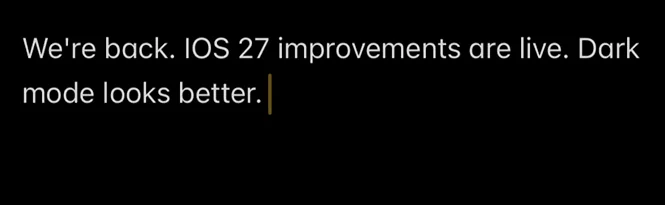

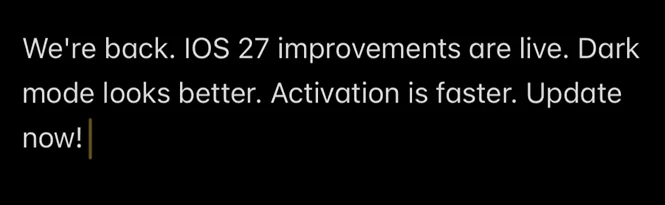
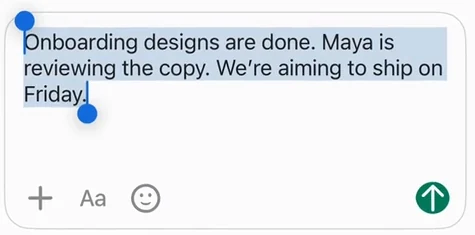
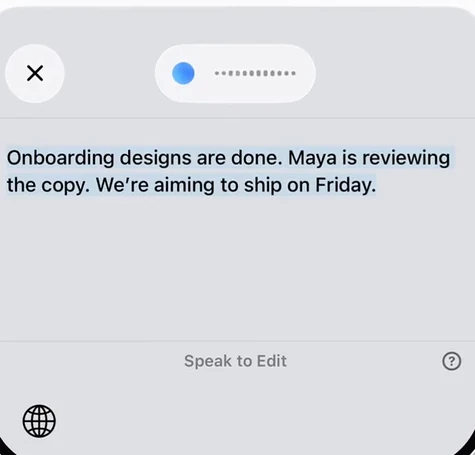
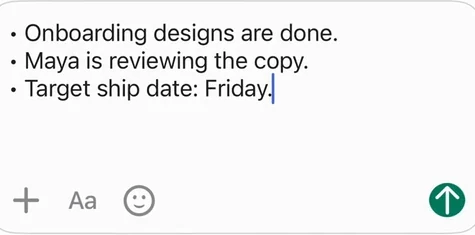
Dictate, select, change it by voice
Ready to try your own reply?
Start in Notes so you can try both dictation and a voice edit in one place.
- On an iPhone with iOS 17 or later, open Aqua Voice.
- Enable its keyboard and Full Access, and allow microphone access for the app.
- In Notes, use the globe key to switch to Aqua's keyboard, then tap the mic. If the Aqua app opens, it is starting the microphone; return to Notes. You can dictate from Aqua's keyboard while the microphone stays active.
- Say your reply and tap the mic again to finish. Select a phrase, tap Edit, and say how you want to change it.
Secure fields and some apps use the system keyboard, so use Notes for this first try.
Say the reply you were trying to send, then change one phrase by voice. Try it with your own words now.


Comments
No comments yet. Ask a question or share what worked for you.