Transcribe a Voice Memo: How Do You Turn a Saved Recording Into Usable Text?
The sentence you need for an email is still inside a voice memo. You can turn that saved recording into text without saying it all again.


Start by checking whether your recording already has a transcript.
- On a supported iPhone, open the recording → “…” → “Copy Transcript”. Paste it into Notes.
- If that option is missing, use the audio file. Go to the import steps.
Turn a saved recording into text with Transkriptor.
How do you copy the words from an iPhone recording?
Your memo may already have text attached. Voice Memos supports English transcription on iPhone 12 and later with a supported version of iOS.
- Open the recording in Voice Memos.
- Tap “…” and choose “Copy Transcript”.
- Paste the text into Notes.
For just one sentence, choose “View Transcript”, select the words you need, then tap “Copy”.
Try an older recording too. Speech recorded in iOS 17 or earlier can be transcribed when you open it on a supported iPhone. Apple’s transcription instructions show both copying options.
What if “Copy Transcript” is missing?
Check your iPhone model and software update first. Transcription starts with iPhone 12; the requirements for Apple Intelligence writing tools are different. You do not need those tools just to copy a transcript.
If no text appears, keep the recording. The same menu offers two different things:
| Menu option | What you get |
|---|---|
| Copy Transcript | Text you can paste into a note or email |
| Share | The audio file you can send to another app |
Use “Share” to take the original audio to a transcription service.
How do you import the recording and get text back?
Transkriptor can transcribe the file when your memo has no built-in text. You choose the language spoken in the recording. The audio is uploaded to the service over the internet.
Save the audio where you can find it
In Voice Memos, open the recording, tap “…” → “Share” → “Save to Files”. Choose a folder and save. Keep the M4A file as it is.
Upload the saved file
Open Transkriptor and sign in. Choose “Upload a File” and select your recording from Files. Use the existing audio rather than starting a new recording.
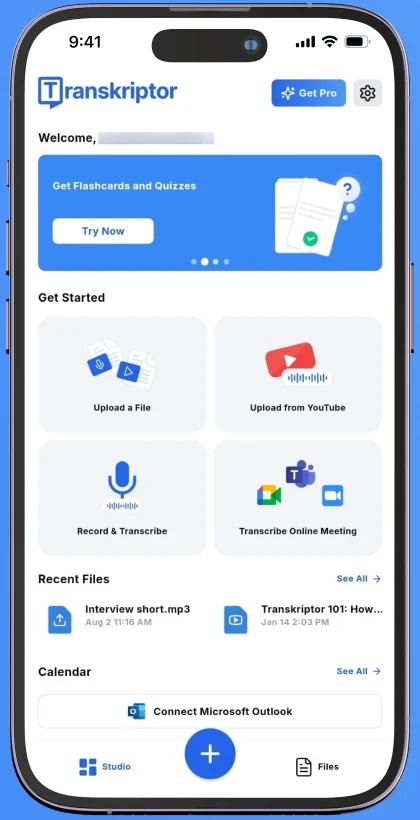
Image source and steps
Match the language to the voice
Under “Language”, choose English for an English recording, or the language actually spoken. Then select “Transcribe” to open the result in the editor.
The recording’s language matters, even if your phone uses another one. Set it before starting the transcription.
You can start with a free trial. Check the available allowance before processing a long recording.
How do you use a recording saved on Android?
Open the memo in your phone’s recording app and look for sharing or export. The app and menu names depend on the manufacturer.
- Save the recording as an audio file.
- Choose the file upload option in Transkriptor and select it from your phone’s storage.
- Choose the spoken language and start transcription.
M4A, MP3 and WAV files are supported. An M4A recording can go straight into the service without being converted to MP3.
How do you turn the transcript into a sentence you can use?
Find the passage you need and check names, numbers and wording against the audio. Correct it in the editor before copying it into your email.
If you used the iPhone’s built-in transcript, the text you pasted into Notes is ready for the same check.
Need a text file? In Transkriptor, open “…” → “Export” and choose TXT. Save the downloaded file where you can find it. The trial has limits; check your plan’s allowance for the full recording and download.
The words are already recorded. Import that file, check the sentence you need, and put it to use.
Comments
No comments yet. Ask a question or share what worked for you.